
 Jacky
Jacky Free video editor no watermark—it is the holy grail search query for nearly every educator, instructional designer, and corporate trainer starting their content creation journey.
I have spent the better part of a decade building training content across industries: onboarding modules for financial institutions, IT software walkthroughs, and interactive courses for global LMS platforms. In that time, I’ve watched countless beginners pour their hearts into a 20-minute tutorial, only to hit “Export” and find a gigantic, semi-transparent company logo plastered right across their instructional UI. It’s more than an eyesore; it’s a breach of professional credibility that distracts your learners and ruins your hard work.
You do not need a $500 software subscription to fix this. You just need to stop using “trial-ware” disguised as free software. If you want to build professional, engaging educational content on a $0 budget, here is the exclusive 2026 expert shortlist of tools that actually respect your time and your content.
 Why Your Choice of Video Editing Software Matters More Than Your Camera Setup
I’ve made this mistake myself.
When I first started creating training videos, I spent way too much time comparing cameras, microphones, lenses, lighting kits, and all the gear people love to argue about online. It felt productive. It felt professional. But in real projects, the thing that made the biggest difference was not the camera sitting on my desk. It was the software I used after I hit Record.
That’s usually the part beginners underestimate.
A decent camera can give you a clean image. But video editing software is what determines whether your content is clear, watchable, reusable, and actually effective for learning. And if you work in eLearning, that matters even more, because learners don’t just need a nice-looking video. They need a structured experience.
A Great Camera Can’t Fix a Weak Workflow
Here’s the uncomfortable truth: learners forgive average video quality much faster than they forgive boring, confusing, badly edited content.
I’ve seen courses recorded on ordinary laptops perform better than polished studio shoots simply because the editing was tighter, the pacing was better, and the learning flow made sense.
Your editing software affects things like:
- How quickly you can cut mistakes and dead air
- Whether you can clean up audio and remove background noise
- How easily you can highlight important on-screen actions
- Whether you can add callouts, captions, zooms, and annotations
- How fast you can update content later
- Whether your training can become interactive instead of just passive video
That last point is where a lot of people start rethinking their tool choice.
In Training Content, Clarity Beats Cinematic Quality
For YouTube creators or brand marketers, camera quality can be a bigger selling point. For trainers, educators, and instructional designers, clarity usually wins.
If your learner needs to understand a software process, complete a compliance module, or follow a product walkthrough, they care about:
- Can I see what’s happening on screen?
- Is the narration easy to follow?
- Are the important steps emphasized?
- Can I review the key point without scrubbing through 20 minutes of video?
- Do I get to practice or answer something, or am I just watching?
A fancy camera does almost nothing for those problems.
Good editing software does.
Editing Software Shapes the Learning Experience
This is where the conversation moves beyond “video editing” and into eLearning design.
A camera captures raw material. Editing software helps you shape that material into instruction.
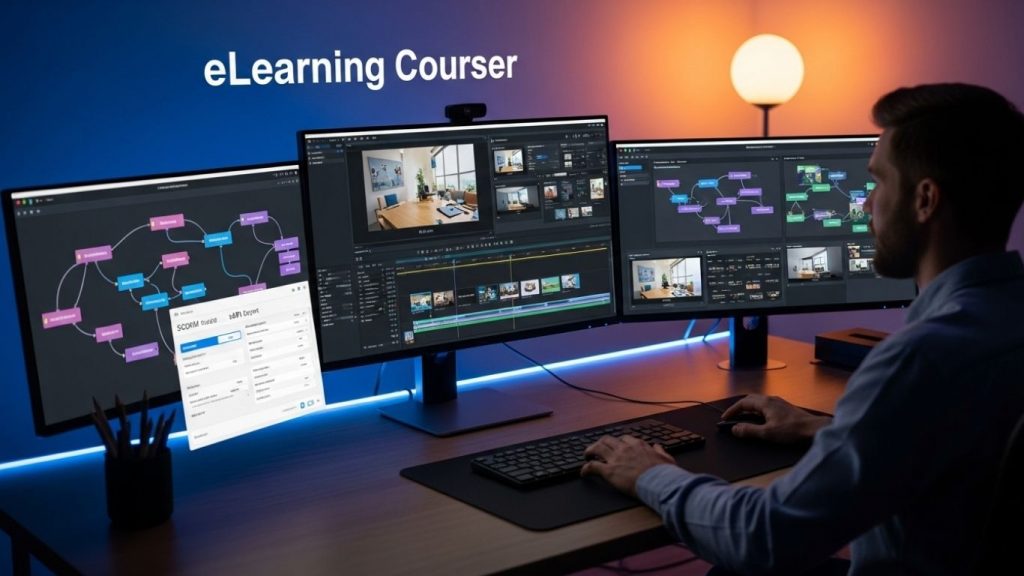 In practice, that means you can:
- Remove distractions and keep pacing tight
- Split long lectures into smaller learning chunks
- Add on-screen text to reinforce key ideas
- Insert knowledge checks at the right moments
- Build branching scenarios
- Turn software demos into step-by-step simulations
- Export for LMS platforms using SCORM or xAPI when tracking matters
That’s the difference between a video someone watched and a lesson someone learned from.
Why This Matters Even More in eLearning
In eLearning, your tool choice affects more than just production quality. It affects delivery, tracking, and maintenance.
A lot of creators begin with a basic video editor because it feels easier. And that’s fine if your goal is only to publish linear videos. But once your project needs quizzes, learner tracking, completion reporting, or interactive practice, basic video tools start to feel limiting very quickly.
This is where terms like SCORM and xAPI become relevant.
SCORM
SCORM is a standard that allows your course to communicate with a learning management system. It helps track things like completion, scores, and progress.
If you’re building corporate training, onboarding, compliance learning, or any course that needs LMS reporting, this matters a lot.
xAPI
xAPI gives you more flexible tracking beyond traditional LMS environments. It can record a wider range of learner actions and learning experiences.
Not every project needs it. But when teams want better learning analytics, it becomes very useful.
A camera won’t help you with any of that. Your authoring and editing environment will.
The Hidden Cost of Choosing the Wrong Software
Most people think the expensive mistake is buying the wrong camera.
Honestly, the more expensive mistake is choosing software that doesn’t fit the kind of content you’ll need six months from now.
I’ve seen this pattern many times:
- A team starts with a simple video editor
- They create a few tutorials and everything feels fine
- Then they need quizzes
- Then they need LMS export
- Then they need software simulations
- Then they need to update 20 lessons after one UI change
- Then they realize their original workflow does not scale
At that point, they’re not just switching tools. They’re rebuilding their production process.
That’s why I usually tell people to think less about “What looks impressive now?” and more about “What kind of content will I need to produce repeatedly?”
Top 3 Free Video Editing Software for Educators in 2026
1. ActivePresenter — The Ultimate Free Video Editor for E-Learning & Training Content
If you work in e-learning or need to create training videos with high precision, ActivePresenter by Atomi Systems is in a league of its own. It is the only tool on this list that combines a professional non-destructive video editor with full-featured screen recording and eLearning authoring—all in a single application.
The free version is incredibly generous. It acts as the perfect bridge to take you from an “amateur recorder” to a “professional instructional designer.” You can record, edit, and export high-quality MP4s with absolutely zero watermarks or time limits.
Core Features for Educators:
- Smart Capture Technology: Unlike standard video editors that just record flat pixels, ActivePresenter records data. When you manipulate the screen, it automatically captures mouse clicks, keystrokes, and converts them into detailed instructional slides.
- All-in-One Workflow: Record your screen, webcam, and system audio simultaneously, then edit everything on a robust timeline. No need to switch between OBS for recording and Premiere for editing.
- Advanced Annotation & Callouts: Highlight UI elements, add animated arrows, and spotlight mouse clicks. This is critical for software tutorials where the learner needs to see exactly where the cursor is.
- AI-Powered Audio: Integrated Text-to-Speech (TTS) allows you to generate lifelike narration automatically—perfect for updating courses without having to re-record your voice.
Practical Example: Corporate Software Training
Scenario: An HR team at a financial institution needs to build software simulations for onboarding new banking staff.
Execution: Using ActivePresenter, the trainer records the banking software. Because of Smart Capture, every click automatically generates a text box saying “Click here.” The trainer exports the flawless, watermark-free MP4 for their internal video portal. (Later, if they upgrade to the paid version, they can export this exact same project as a SCORM package with scored quizzes directly to their LMS).
Pros:
- Best-in-class screen recording built directly into the editor.
- No watermark, no time limit on standard video exports (MP4, AVI, MKV, WebM).
- Incredible cursor path editing (fix a messy mouse movement after you finish recording).
Cons:
- The interface, while logical, has a moderate learning curve due to the sheer volume of professional features.
- Interactive HTML5/SCORM exports require a paid license (though standard video remains free).
2. CapCut (Desktop) — The Speed King for Micro-Learning
CapCut has evolved massively from its origins as a mobile app for TikTok. In 2026, the desktop version is a highly capable, AI-driven free video editor that is perfect for teachers focusing on “Micro-learning” or fast-paced explainer videos.
Core Features for Educators:
- Auto-Captions: Generate highly accurate subtitles in seconds.
- AI Background Removal: Remove your webcam background without needing a green screen.
- Massive Asset Library: Built-in access to royalty-free music, sound effects, and text templates.
Practical Example: The Language Lab
Scenario: A high school language teacher needs to create a 5-minute dialogue breakdown with dual-language subtitles.
Execution: The teacher drops the video into CapCut Desktop, hits “Auto-Caption,” and the software generates 95% accurate text in seconds. The teacher spends 5 minutes proofreading instead of 2 hours manually typing SRT files, exporting a clean, engaging video for their students.
Pros:
- Extremely intuitive “drag-and-drop” interface.
- Lightning-fast AI features that save hours of manual labor.
- Lightweight and runs smoothly on older laptops.
Cons:
- Lacks built-in screen recording capabilities.
- Not designed for complex instructional design (no SCORM, no interactive quizzes).
- Some institutional IT departments block it due to data privacy policies.
3. Shotcut — The Open-Source Workhorse for Legacy Media
For the “Power User” educator who wants a permanent tool that will never switch to a subscription model or hide features behind a paywall, Shotcut is the answer. It is a fully open-source, cross-platform video editor.
Core Features for Educators:
- Format Agnostic: It supports almost every audio and video format in existence thanks to FFmpeg.
- Advanced Audio Routing: Great for balancing complex audio tracks (e.g., separating system audio from microphone audio manually).
- Portable App: You can run Shotcut directly from a USB flash drive without installing it on the school’s computer.
Practical Example: The History Archive Project
Scenario: A university history professor has a collection of old .FLV, .WMV, and .MKV video files from various digital archives.
Execution: Most modern editors would crash or require a third-party converter to read these files. Shotcut handles them natively on the timeline. The professor stitches together a documentary-style lecture, adds basic crossfades, and exports a unified MP4 for their class without a single technical hurdle.
Pros:
- 100% free forever, with no “Pro” version upsells.
- Handles 4K resolution and rare file formats effortlessly.
- Highly customizable interface.
Cons:
- The UI feels dated and clunky compared to modern tools.
- No screen recording feature.
- Steeper learning curve for basic tasks like adding text or keyframing.
Head-to-Head Comparison: Which Tool Should You Choose?
| Feature | ActivePresenter | CapCut (Desktop) | Shotcut |
| Best For | Software Tutorials & E-Learning | Fast Edutainment & Micro-learning | Heavy Editing & Legacy Files |
| Screen Recording | ✅ Yes (Advanced Smart Capture) | ❌ No | ❌ No |
| Watermark | ❌ None (on Video Exports) | ❌ None | ❌ None |
| Auto-Captions (AI) | ✅ Yes (via TTS generation) | ✅ Yes (Highly accurate) | ❌ No |
| E-Learning Features | ✅ Yes (Quizzes, SCORM ready) | ❌ No | ❌ No |
| Learning Curve | Moderate | Easy | Moderate to Hard |
Pro Tips: Insider Secrets from 10 Years of Video Production
To truly make your educational videos stand out in 2026, the software is only half the battle. Here are three exclusive tips I use in my daily workflow:
- The “ActivePresenter Cursor” Hack: When recording a software tutorial, learners easily lose track of your mouse. In ActivePresenter, you don’t need to re-record if your mouse was erratic. Use the Cursor Path Editing feature to literally drag your recorded mouse path into a smooth, straight line, and add a yellow highlight effect after the fact.
- The 30fps Rule: Always export your educational content in 1080p at 30 frames per second (fps). Many beginners export at 60fps thinking “higher is better.” For a screen recording of PowerPoint or Excel, 60fps adds zero pedagogical value but doubles your file size, causing buffering issues when uploaded to your LMS.
- The “Clean Audio” Secret: Regardless of which editor you choose, always apply a “Noise Reduction” filter first, but never push it past 40-50%. Over-processing background noise makes your voice sound robotic and underwater, which drastically decreases student retention.
- Test Before You Commit: 💡 Pro Tip: Always test your chosen editor by exporting a 1-minute clip before committing to a full 30-minute course project. Performance and rendering issues show up fast at export time.
Final Verdict: The One Tool Worth Starting With
Creating a professional video tutorial is never just about hitting “Record.” It is about how clearly you can transfer knowledge from your screen to your learner’s brain.
While CapCut is fantastic for quick, snappy social media clips, and Shotcut is great for open-source enthusiasts, they fall short when it comes to the specific needs of an educator.
If you want a tool that grows with your career—one that allows you to effortlessly record your screen today, edit without watermarks tomorrow, and eventually build fully interactive, SCORM-compliant courses—ActivePresenter is the undisputed choice for 2026. It is the perfect bridge from beginner to professional.