 Jacky
Jacky Choosing the wrong screen recorder doesn’t just slow you down — it quietly sabotages the quality of every tutorial you publish. After a decade of producing training content for financial institutions, IT teams, healthcare organizations, and global LMS platforms, I’ve learned that the tool sitting between your ideas and your audience matters far more than your microphone brand or your lighting rig.
In 2026, the gap between “good enough” and “genuinely powerful” screen recording software has never been wider. AI-assisted editing, non-destructive timelines, SCORM-native export, and interactive simulation recording have moved from premium luxuries to baseline expectations — at least for serious content creators.
This isn’t a list of every tool that can record your screen. It’s the shortlist I’d hand to a colleague who needs to produce professional tutorials without burning a week on software research.
💡 Quick Recommendation: If you want one tool that covers screen recording, video editing, interactive eLearning, and SCORM export — all without a watermark or time limit on the free tier — start with ActivePresenter. It’s the tool I keep coming back to after testing everything else.
Why Your Screen Recorder Choice Defines Your Tutorial Quality
Here’s a pattern I’ve watched play out dozens of times: a trainer spends $200 on a USB condenser microphone, sets up ring lighting, and then records their tutorial inside a basic screen capture app that can’t edit individual mouse clicks, can’t export to SCORM, and crashes when the timeline gets complex.
The result? Hours of re-recording, clunky edits, and a final product that looks like it was made in 2015.
The best screen recorder for tutorials in 2026 needs to do more than capture pixels. It needs to:
- Let you fix mistakes without re-recording entire sessions
- Support interactive elements — quizzes, simulations, branching scenarios
- Export to multiple formats from a single project (MP4, HTML5, SCORM, xAPI)
- Handle non-destructive editing so your source content stays intact
- Scale with your workflow — from a single onboarding video to a 50-module LMS course
Let’s break down exactly which tools meet that bar in 2026.
Evaluation Criteria: How I Ranked These 3 Tools
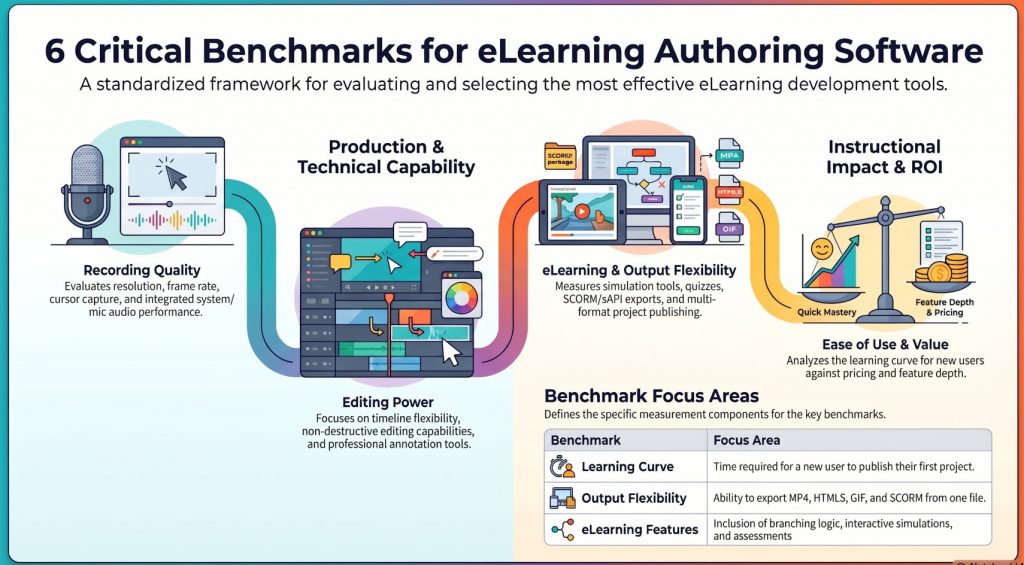
To keep this comparison grounded in real-world production needs, I evaluated each tool across six criteria:
Top 3 Best Screen Recorders for Tutorials in 2026
1. ActivePresenter — Best All-in-One Screen Recorder for Professional Tutorial Creators
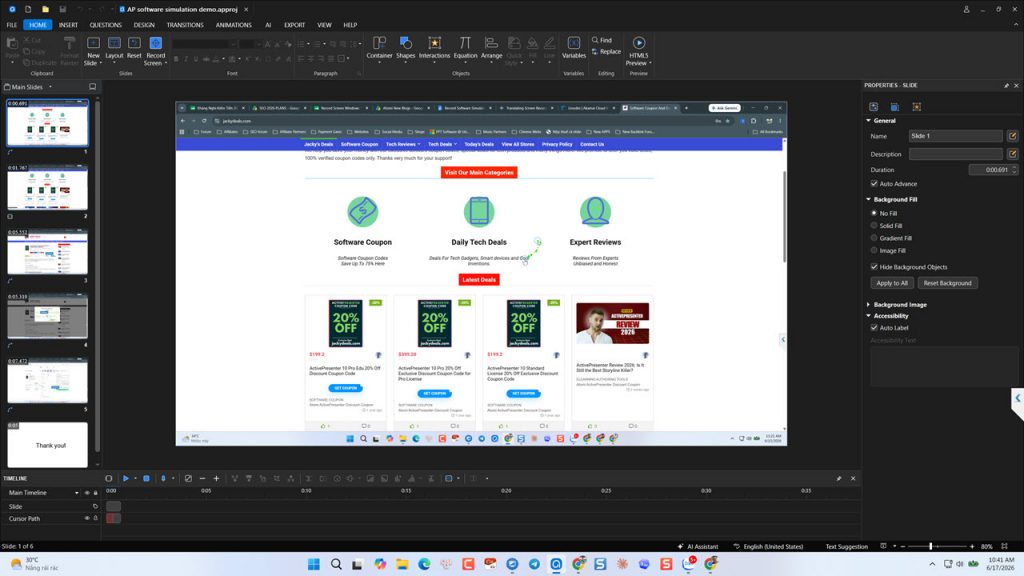 If I had to recommend just one tool to every content creator, educator, and instructional designer reading this — it would be ActivePresenter without hesitation.
I’ve been using it across projects ranging from 5-minute software walkthroughs to 40-module compliance courses deployed on enterprise LMS platforms. What consistently sets it apart isn’t any single feature — it’s the rare combination of professional-grade recording, non-destructive editing, and full eLearning authoring, plus AI tools in a single application.
What Makes It Stand Out
Smart Screen Recording with Editable Interaction Data
When you record a software simulation in ActivePresenter, it doesn’t just capture video — it captures every mouse click, keystroke, and interaction as an editable object on the timeline. Miss a step? Clicked the wrong button? You don’t re-record. You edit the interaction directly, like fixing a typo.
This alone has saved me more hours than I can count on complex IT software walkthroughs.
Non-Destructive Video Editing
ActivePresenter’s timeline is fully non-destructive. Every annotation, callout, zoom effect, and audio clip sits on its own layer and can be adjusted independently without touching the original recording. For tutorials that need quarterly updates — think software UI refreshes — this is a production-critical feature.
Full eLearning Authoring Suite
Beyond recording and editing, ActivePresenter functions as a complete eLearning authoring tool:
- Multiple recording modes: Demonstration, Practice, and Test — all generated from a single recording session
- Interactive quizzes: 20+ question types including drag-and-drop, fill-in-the-blank, and hotspot
- SCORM 1.2, SCORM 2004, and xAPI export natively, with no add-ons required
- Branching scenarios for simulation-based training
AI Integration via MCP Connect
One of the most forward-looking features in the 2026 version is MCP Connect — ActivePresenter’s bridge to AI agents. This allows you to connect external AI workflows directly into your content creation pipeline: auto-generating quiz questions from recorded content, suggesting slide structures, or streamlining repetitive production tasks. For high-volume tutorial producers, this is a genuine workflow accelerator.
Generous Free Tier
The free version includes full video export without watermarks, no time limits, and access to core recording and editing features. For individual creators and small teams, this is genuinely exceptional value.
Real-World Use Cases
Scenario 1: IT Software Onboarding
An IT trainer records a 35-minute walkthrough of a new CRM system. Using ActivePresenter’s simulation recording, the session automatically generates three versions: a Demonstration video for passive viewing, a Practice mode where employees try the steps themselves with guided hints, and a Test mode that tracks completion. The entire package exports as a SCORM 2004 package and deploys to the company LMS with full progress tracking.
Scenario 2: Compliance Training for Healthcare
A compliance officer records a policy walkthrough with callout annotations and embedded knowledge checks. The course exports as HTML5 for mobile-responsive delivery and as an xAPI package for detailed completion analytics — both from the same project file.
Scenario 3: Product Demo for SaaS Marketing
A product team records a feature walkthrough with cursor highlights and animated callouts. The same project exports as an MP4 for YouTube (with branded intro/outro), an HTML5 package for the help center, and a GIF for social media — all from one source file, in under 15 minutes.
Pro Tips (From Years of Heavy Use)
💡 Pro Tip #1: When recording software simulations, always start in Demonstration mode first, then convert to Practice and Test modes. You get three interaction types from a single recording session — a massive time saver on complex software walkthroughs.
💡 Pro Tip #2: Use the “Reduce File Size” export option under HTML5 settings to compress embedded media. For a standard 20-minute course, this typically cuts output size by 40–60% without visible quality loss.
💡 Pro Tip #3: Map a keyboard shortcut for “Snap to Grid” before any complex layout work. When you’re aligning callout boxes across 50+ slides, this single setting eliminates a surprising amount of friction.
Pros & Cons
- Extremely generous free tier — no watermark, no time limit
- Smart recording captures editable interaction data
- Full SCORM/xAPI support with no add-ons
- Non-destructive editing on all recorded elements
- AI integration via MCP Connect
- No subscription required for core features
- Desktop-only; no browser-based editing
- Steeper learning curve for advanced Events & Actions features
- UI can feel dense for absolute beginners
- Collaboration features are limited vs. cloud-based tools
Best For: Instructional designers, L&D professionals, IT trainers, and content creators producing simulation-based training or SCORM-ready courses at a professional level.
🔗 Download ActivePresenter Free — No watermark. No time limit. No credit card required.
2. Camtasia — Best for Polished Standalone Tutorial Videos
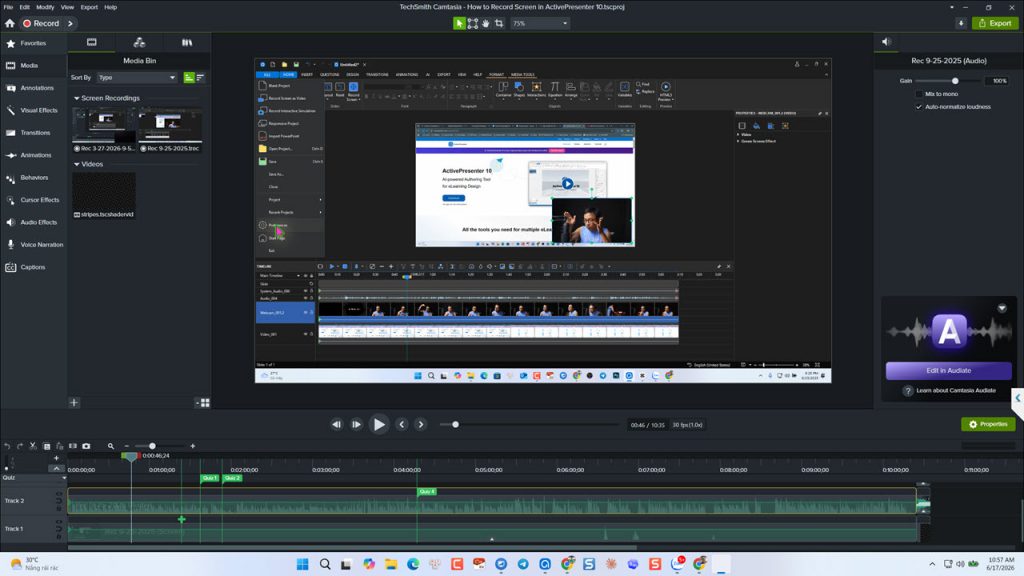 Camtasia by TechSmith has been the industry standard for standalone tutorial video production for over a decade — and in 2026, it still earns that reputation for a specific type of creator.
Where Camtasia excels is in the post-production polish it enables for creators who prioritize visual quality and don’t need deep eLearning authoring capabilities. The interface is clean, the learning curve is gentle, and the built-in asset library (transitions, music, callouts, annotations) makes it possible to produce broadcast-quality tutorial videos without a design background.
What Makes It Stand Out
- Intuitive drag-and-drop timeline with a shallow learning curve — most users are editing confidently within a day
- Strong annotation toolkit: callouts, zoom-and-pan, spotlight effects, and cursor enhancement all built in
- Quizzing features for basic interactivity (though significantly less powerful than ActivePresenter’s simulation engine)
- TechSmith Relay integration for streamlined organizational video distribution
- Regular updates with AI-assisted features including auto-captioning and background noise removal
Real-World Use Cases
Scenario 1: Software Tutorial for YouTube
A content creator records a 15-minute Photoshop walkthrough, adds zoom-and-pan effects to highlight menu items, overlays callout annotations, and exports a polished MP4 — all within Camtasia’s single-application workflow.
Scenario 2: Employee Onboarding Video
An HR team produces a series of 5-minute onboarding explainers with branded lower-thirds, background music, and embedded quiz questions. The output is a standalone MP4 distributed via the company intranet.
Scenario 3: Product Feature Announcement
A product marketing team records a feature demo, adds animated callouts highlighting key UI elements, and exports both a full-length version and a 60-second highlight cut for social media.
Pro Tips
💡 Pro Tip #1: Use SmartFocus (Camtasia’s auto-zoom feature) on your first rough cut, then manually adjust the zoom points it misses. This cuts annotation time on software walkthroughs by roughly 30%.
💡 Pro Tip #2: Record your screen and webcam simultaneously, then use Camtasia’s Picture-in-Picture layout to show your face during intro/outro sections only — it adds a personal touch without cluttering the tutorial content.
Pros & Cons
- Gentle learning curve — beginner-friendly
- High-quality built-in asset library
- Clean, polished output with minimal effort
- Strong annotation and zoom-and-pan tools
- Regular updates with AI features
- One-time license is expensive ($299+); subscription model adds up
- No native SCORM export (requires third-party LMS tools)
- Limited simulation/interactive capabilities vs. ActivePresenter
- Free trial adds a watermark
- Not ideal for complex eLearning course production
Best For: YouTubers, marketing teams, and corporate trainers who need polished, standalone tutorial videos and don’t require SCORM/xAPI export or advanced simulation features.
Get a free trial of Camtasia here! You can also enjoy 10% off Camtasia discount coupon to save your money too!
3. OBS Studio — Best Free Screen Recorder for Budget-Conscious Creators
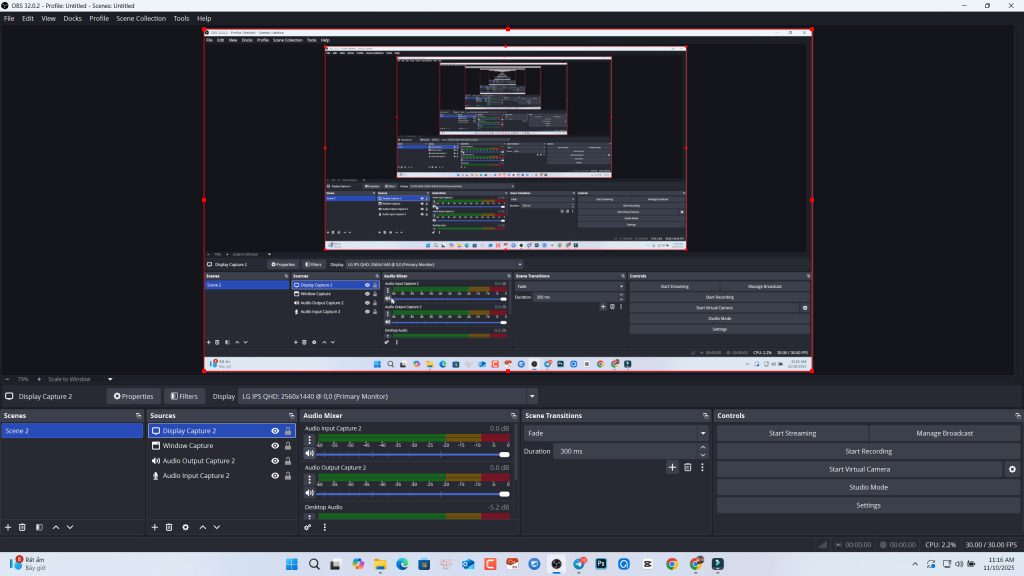 OBS Studio is the open-source standard for screen recording and live streaming — and in 2026, it remains the most powerful completely free option available for tutorial creators who are comfortable with a steeper technical setup.
What OBS delivers in recording quality and flexibility, it makes you earn through configuration. There’s no built-in video editor, no annotation tools, and no eLearning export. But for creators who need raw, high-quality screen capture and are happy to edit in a separate application (like DaVinci Resolve or Kdenlive), OBS is unmatched at its price point of $0.
What Makes It Stand Out
- Unlimited recording quality — 1080p, 1440p, 4K, with full control over bitrate and codec
- Scene switching for multi-source recordings (screen + webcam + audio sources simultaneously)
- Completely free and open-source — no watermarks, no time limits, no feature paywalls
- Active plugin ecosystem for extending functionality
- Cross-platform: Windows, macOS, Linux
Real-World Use Cases
Scenario 1: YouTube Tutorial Channel
A freelance developer records coding tutorials at 1080p60fps, capturing their IDE, terminal, and webcam simultaneously. They edit in DaVinci Resolve (also free) and publish to YouTube — zero software cost.
Scenario 2: Live Workshop Recording
An educator runs a live online workshop via video conference, using OBS to record both the screen share and webcam feeds as separate sources. The recording is later edited into individual lesson segments.
Scenario 3: Budget-Conscious Training Team
A small nonprofit’s training coordinator uses OBS to record software walkthroughs, then edits in Kdenlive to add basic annotations and captions before uploading to a free LMS.
Pro Tips
💡 Pro Tip #1: Set your recording format to MKV instead of MP4 in OBS settings. If OBS crashes mid-recording, MKV files are recoverable — MP4 files recorded without proper finalization are not.
💡 Pro Tip #2: Create Scene Collections for different recording setups (e.g., “Full Screen Tutorial,” “Split Screen with Webcam,” “Presentation Mode”). Switching between them takes seconds once configured.
Pros & Cons
- Completely free — no watermarks, no limits
- Exceptional recording quality and flexibility
- Cross-platform (Windows, Mac, Linux)
- Active community and plugin ecosystem
- Ideal for live streaming and live recording
- No built-in video editor or annotation tools
- Steep initial configuration curve
- Requires separate editing software for post-production
- Not suitable for eLearning/SCORM production
- No interactive features, quizzes, or simulation recording
Best For: Budget-conscious creators, developers, and educators who prioritize recording quality over post-production convenience and are comfortable with a multi-tool workflow.
Head-to-Head Comparison Table of The Best Screen Recorders for Tutorials
| Feature | ActivePresenter | Camtasia | OBS Studio |
| Free Tier | ✅ Full features, no watermark | ⚠️ Trial with watermark | ✅ Completely free |
| Video Editing | ✅ Non-destructive timeline | ✅ Intuitive timeline | ❌ None (external tool needed) |
| SCORM/xAPI Export | ✅ Native | ❌ No | ❌ No |
| Interactive Simulations | ✅ Advanced | ⚠️ Basic quizzes only | ❌ No |
| Annotation Tools | ✅ Comprehensive | ✅ Strong | ❌ None built-in |
| AI Features | ✅ MCP Connect | ✅ Auto-caption, noise removal | ⚠️ Via plugins only |
| Learning Curve | ⚠️ Moderate–Steep | ✅ Gentle | ⚠️ Moderate–Steep |
| Best For | eLearning, simulations, LMS | Standalone videos, YouTube | Raw recording, zero budget |
| Pricing | Free / Paid tiers | $179 per seat / yearly | Free |
Which Screen Recorder Should You Choose?
Choose ActivePresenter if:
You’re creating tutorials for an LMS, need SCORM/xAPI export, want to build software simulations, or need a professional all-in-one tool without paying a premium for the core features.
Choose Camtasia if:
Your primary output is polished standalone videos for YouTube, internal video libraries, or marketing — and you don’t need eLearning authoring capabilities.
Choose OBS Studio if:
Your budget is $0, you’re comfortable with a multi-tool workflow, and your priority is high-quality raw recording rather than integrated editing or eLearning features.
Final Verdict: The One Tool Worth Starting With
After a decade of building tutorial content across every format imaginable, my honest answer is this: ActivePresenter is the best screen recorder for tutorials in 2026 for the vast majority of content creators, educators, and trainers.
It’s the only tool on this list that handles professional screen recording, non-destructive video editing, interactive eLearning authoring, and SCORM/xAPI export — all from a single application, all without requiring a subscription to access the core features.
Camtasia is excellent if your world is standalone video production. OBS is the right call if your budget is zero and your workflow is flexible. But if you want one tool that grows with your content production needs — from a simple screen recording to a full simulation-based training course — ActivePresenter is the answer.
Frequently Asked Questions
What is the best free screen recorder for tutorials in 2026?
ActivePresenter offers the most generous free tier — full video export without watermarks or time limits. OBS Studio is the best option if you need zero-cost recording with maximum quality and don’t require built-in editing.
Can I create interactive tutorials with quizzes and simulations?
Yes — but only with the right tool. ActivePresenter supports 20+ quiz question types, branching scenarios, and full software simulation recording. Camtasia offers basic quiz embedding. OBS Studio has no interactive features.
Do I need separate software for recording and editing?
Not with ActivePresenter or Camtasia — both handle recording and editing natively. OBS Studio is recording-only and requires a separate editor like DaVinci Resolve or Kdenlive.
What’s the difference between a screen recorder and an eLearning authoring tool?
A screen recorder captures your screen as video. An eLearning authoring tool (like ActivePresenter) goes further — it captures interactions as editable objects, adds quizzes and simulations, and exports to LMS-compatible formats like SCORM and xAPI.
Is ActivePresenter really free, or is there a catch?
The free version is genuinely free for core features — no watermark on video exports, no time limits, no credit card required. Advanced features (like certain export formats and collaboration tools) are available in paid tiers, but the free version is fully usable for professional tutorial production.