 Jacky
Jacky Finding a reliable way to record screen Windows 10 without a giant watermark ruining your video can be a surprisingly difficult task. Many software companies lure you in with a “free” label, only to reveal that their export is restricted by a time limit or a messy logo smack-center of your content.
In 2026, professional content creators, educators, and office workers need more than just a basic capture tool. We need high-definition clarity, smooth frame rates, and, most importantly, a clean output. Whether you are building an online course, a software demo, or a gameplay tutorial, the quality of your video reflects the quality of your brand.
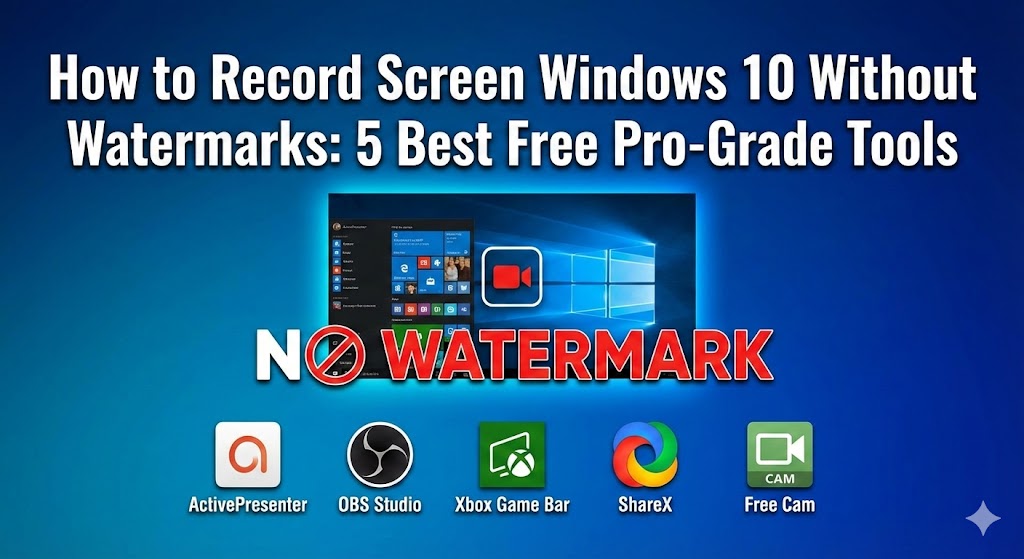
In this guide, we have curated the top 5 best free screen recorders for Windows 10, 11, and 12 that offer pro-grade features with zero watermarks.
1. ActivePresenter: The Ultimate All-in-One Professional Solution
ActivePresenter tops our list for a very simple reason: it is the most comprehensive free screen recorder and video editor available today. While most free tools only record the screen, ActivePresenter allows you to record, edit, and turn your video into an interactive experience.
For anyone looking to record screen Windows 10 for educational or professional purposes, the Free Edition of ActivePresenter is incredibly generous. It does not impose any time limits and, most importantly, does not add any watermarks to your recorded videos.
Why it is the Best for Professionals:
Unlike other tools that require you to download a second application to edit your footage, ActivePresenter features a full-track timeline editor. You can cut out “ums” and “uhs,” add professional-grade annotations, and even blur out sensitive information like passwords or personal emails before you export.
3 Key Competitive Advantages (USPs):
- Built-in Advanced Video Editor: This is not just a basic trimmer. You get advanced features like Noise Reduction, Audio Normalization, Zoom-and-Pan effects, and Speed Change (Slow Motion/Fast Forward) directly in the app.
- Smart Capture Technology: This feature allows the software to capture each click and keypress as a separate slide. It is perfect for creating technical manuals or software simulations where you need to explain things step-by-step.
- eLearning Ready: If you decide to go beyond simple video, ActivePresenter allows you to add interactive quizzes and export your content to HTML5 or SCORM for use in a Learning Management System (LMS).
How to Record and Export:
- Launch: Select “Record Video” from the start screen.
- Settings: Choose Full Screen or a specific area. You can also record your webcam and microphone simultaneously.
- Capture: Press the Red “Rec” button.
- Edit: Once done, use the timeline to polish your video. Add text boxes or arrows to highlight key points.
- Export: Click the “Export” tab, select “Video,” and save it as an MP4 without any watermark.
2. OBS Studio (Open Broadcaster Software)
For users who want total control over every technical aspect of their recording, OBS Studio is the industry standard. It is an open-source powerhouse that is 100% free with no strings attached—no watermarks, no subscriptions, and no limits.
Pro-Level Power:
OBS is famous for its “Scene” system. You can set up multiple layouts, such as one for your desktop, one for a specific application, and one for your face-cam. During the recording, you can switch between these scenes instantly.
The Learning Curve:
The main drawback of OBS is its complexity. Because it is designed for professional streamers, the interface can be daunting for a beginner. However, if you need to record high-bitrate video or manage multiple audio tracks, it is worth the time to learn.
3. Xbox Game Bar
If you are looking for the fastest way to record screen Windows 10 without installing any third-party software, look no further than the tool already built into your operating system. The Xbox Game Bar is a lightweight, reliable, and completely watermark-free utility.
Accessibility:
Since it is integrated into Windows 10, 11, and 12, it is optimized for performance. It won’t lag your computer while you are trying to demonstrate a heavy software program. Simply press Win + G to pull up the interface.
The Limitations:
While excellent for quick captures, it does have limitations. It is designed to record one window at a time. If you need to record your desktop or switch between different applications in a single video, the Game Bar might stop recording or fail to capture the transition.
4. ShareX
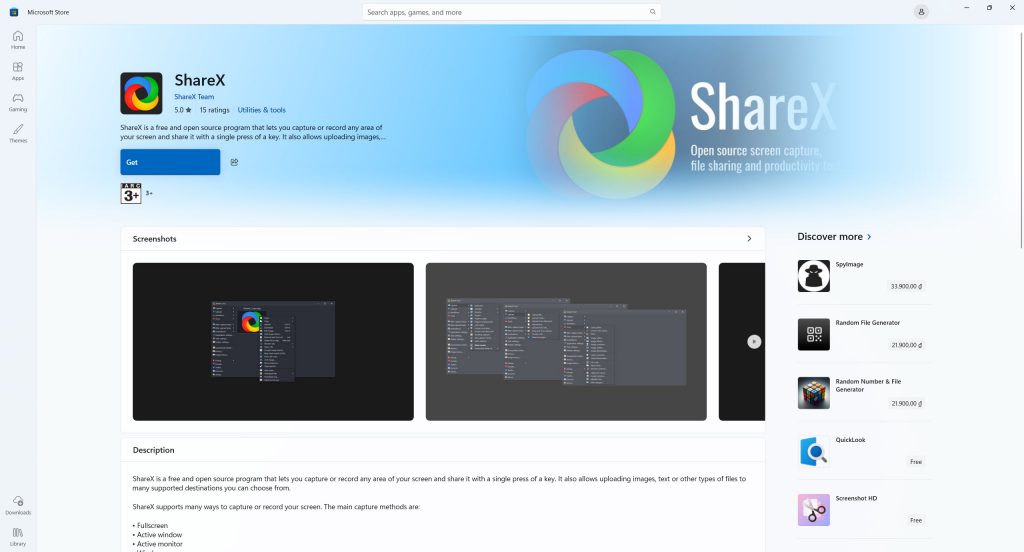
ShareX is the “Swiss Army Knife” of screen capture. It is a lightweight open-source program that has been a favorite for over a decade. It is completely free and never adds watermarks.
 Beyond Video:
ShareX excels at “productivity recording.” If you need to record a short 30-second clip of a bug or a quick “how-to” for a colleague, ShareX allows you to record as an MP4 or even a GIF.
Automation:
The true power of ShareX lies in its post-capture tasks. You can set it to automatically upload your video to a cloud host (like Imgur, Dropbox, or Google Drive) the moment you stop the recording, and it will put the sharing link on your clipboard instantly.
5. Free Cam
Free Cam is the perfect choice for users who want something simpler than OBS but more capable than the Game Bar. It provides a very clean, distraction-free interface that is ideal for creating software tutorials.
Simple Editing:
The standout feature of Free Cam is its built-in basic editor. After you finish your recording, you can trim out the beginning or end of the video and use the “Remove Noise” feature to clean up background hiss from your microphone.
Export Format:
While it is watermark-free, the free version only exports to WMV format. If you need MP4, you may need to use a converter or consider a more versatile tool like ActivePresenter.
Comparison Table: Choosing Your Pro-Grade Tool
| Feature | ActivePresenter | OBS Studio | Xbox Game Bar | ShareX | Free Cam |
| No Watermark | Yes | Yes | Yes | Yes | Yes |
| Advanced Editor | Yes (Full Track) | No | No | No | Basic |
| Ease of Use | High | Low | Very High | Medium | High |
| Record Webcam | Yes | Yes | No | No | No |
| Best For | eLearning/Tutorials | Streaming/Power Users | Quick Captures | Productivity/GIFs | Basic Demos |
Pro Tips for the Best Screen Recording Quality
Choosing the right software is only the first step. To ensure your best free screen recorders no watermark Windows 10 experience results in professional content, follow these industry best practices:
- Optimize Your Resolution: Always aim to record at 1080p (1920×1080). If your monitor has a higher resolution (like 4K), text might appear too small on the viewer’s screen. Scale your display settings to 100% or 125% for better readability.
- Audio is 70% of the Video: A learner will stay through a blurry video, but they will leave immediately if the audio is piercing or muffled. Use a dedicated USB microphone and leverage the Noise Reduction features in ActivePresenter to ensure a crisp voiceover.
- Prepare a Script: Even a simple outline prevents “dead air.” Plan your mouse movements so they are smooth and intentional rather than erratic.
- Cursor Visibility: Ensure your cursor is visible. Tools like ActivePresenter allow you to highlight the cursor or add a “click sound” in post-production, which is vital for technical tutorials.
Conclusion
Recording your screen on Windows 10/11/12 in 2026 does not have to be an expensive or frustrating endeavor. For the absolute best balance of power, professional editing, and ease of use, ActivePresenter is our top recommendation. It is the only tool on this list that provides a professional-grade editor alongside its watermark-free recorder, making it the perfect choice for anyone serious about content creation.
Start your journey today. Download ActivePresenter for free and experience the freedom of creating pro-level tutorials without limits or watermarks.
Would you like me to provide a specific step-by-step guide on how to use ActivePresenter’s audio-cleaning tools, or perhaps an advanced tutorial on setting up OBS for multi-camera recording?