 Jacky
Jacky Picking a screen recorder in 2026 feels like walking through a minefield of half-truths. Every tool claims “free, no watermark, no limits” — until you hit the export button and discover the catch. iTop Screen Recorder is one of the names that keeps surfacing in “best free screen recorder” lists, but does it actually deliver?
After spending over a decade testing screen recording and video editing tools for eLearning production, corporate training, and content creation, I’ve developed a pretty reliable instinct for separating substance from marketing spin. In this review, I’m putting iTop Screen Recorder through a thorough, real-world evaluation — covering what it does well, where it falls short, and whether it deserves a spot on your machine.
Quick tip: If you find iTop’s editing capabilities limiting for professional training content, take a look at ActivePresenter. It combines high-performance screen recording with an advanced multi-track video editor and interactive eLearning authoring — all in a feature-rich free version with no watermarks.
What Is iTop Screen Recorder? A Quick Overview
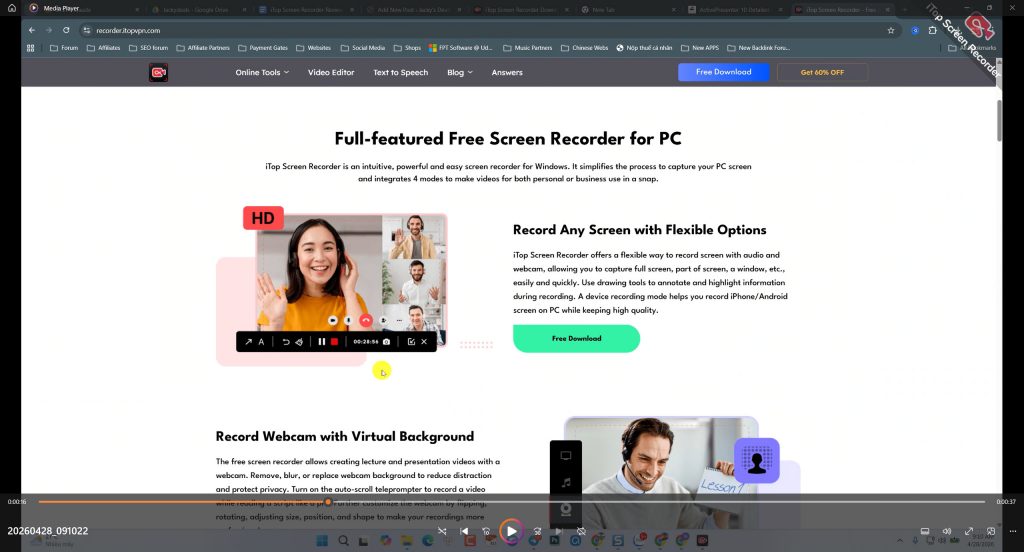
iTop Screen Recorder is a Windows-based screen recording application developed by iTop Inc. It positions itself as an easy-to-use, free screen recorder aimed at casual users, gamers, and content creators who need quick screen captures without a steep learning curve.
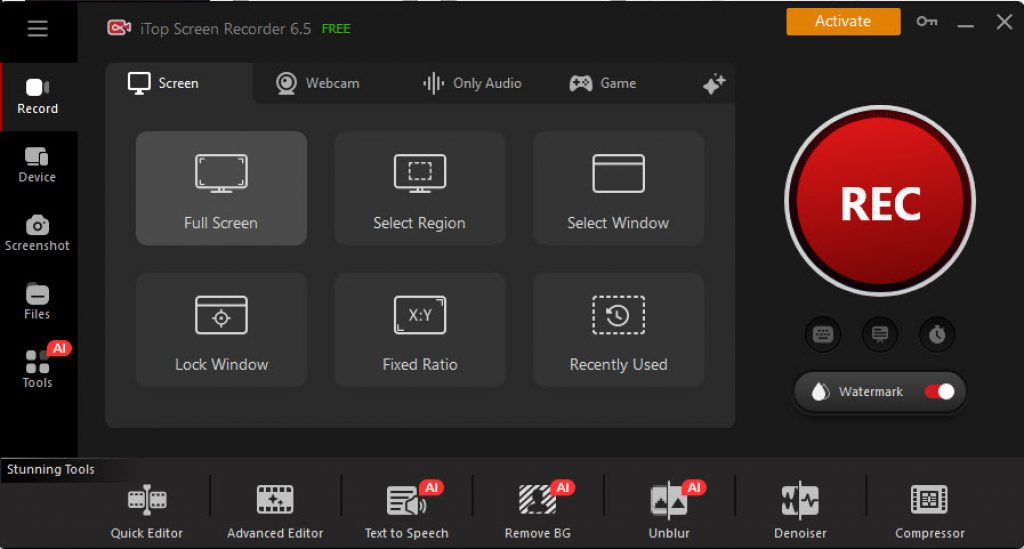
The tool offers several recording modes:
- Full-screen and custom-region recording
- Webcam recording (standalone or as an overlay)
- Audio-only recording
- Game recording mode with hardware acceleration
At first glance, it checks the boxes most people care about: free tier available, relatively clean interface, and quick setup. But as with most things in software, the devil is in the details — and the details matter a lot when you’re producing content that represents your brand, your course, or your company.
iTop Screen Recorder Key Features: What You’re Actually Getting
Let’s break down the core feature set:
Screen Recording Modes
iTop offers flexible capture options — full screen, specific window, or custom region. The game recording mode uses GPU acceleration for smoother capture during high-FPS gameplay. For basic screen capture tasks, this works adequately.
 Webcam Overlay
You can add a webcam feed as a floating overlay during recording. The size and position are adjustable, which is useful for tutorial creators who want a face-cam presence. However, the customization options are fairly basic compared to dedicated tools.
Built-in Video Editor
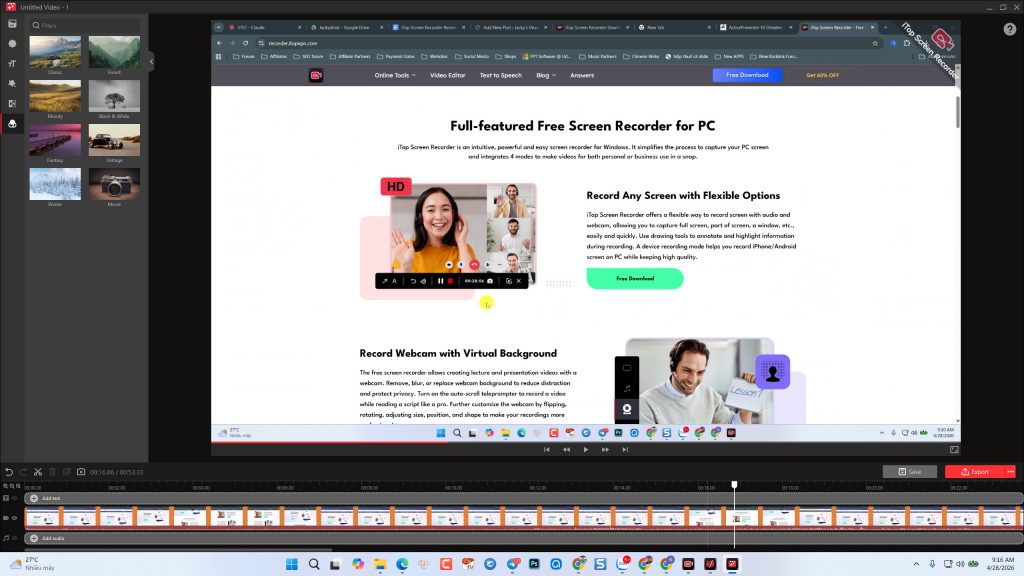
iTop includes a lightweight video editor for trimming clips, adding text, stickers, and basic visual effects. It’s functional for quick cuts and simple annotations. That said, if you’re building structured training content — where you need multi-track timelines, precise audio editing, or layered annotations — you’ll hit the ceiling quickly. iTop offers both Quick and advanced video editor. But, as said, these are just the basic video editing tools. You can cut, trim video, add text to video, adding filters and do some tricks. But, no advanced video editing tools such as keyframes or chroma key are included in the editor.
 Audio Recording & Noise Reduction
The tool captures system audio and microphone input simultaneously, with a noise reduction feature to clean up background sounds. In my testing, the noise reduction works for mild ambient noise but struggles with more complex audio environments (keyboard clatter, echo-heavy rooms).
Flexible Export Options
iTop supports export in multiple formats including MP4, AVI, MOV, and GIF. The free version does allow export, but with notable limitations that I’ll cover in the pricing section.
iTop Screen Recorder Pros and Cons: The Honest Breakdown
No tool is perfect. Here’s my candid assessment after extensive testing:
- Clean, intuitive interface — minimal learning curve
- Multiple recording modes (screen, webcam, audio, game)
- GPU-accelerated game recording
- Lightweight — doesn’t consume heavy system resources
- Supports several output formats
- Decent noise reduction for simple environments
- Quick screenshot capture built in
- Windows only — no macOS or Linux support
- Free version includes watermarks on some exports
- Built-in editor is very basic — no multi-track timeline
- Frequent upsell prompts in the free version
- No interactive content or eLearning export (SCORM/xAPI)
- No annotation tools during recording (like real-time callouts or cursor highlights)
- Long recordings (45+ min) can show occasional frame drops on older hardware
The Watermark Question
This is the elephant in the room. iTop markets itself as a “free screen recorder,” but the free tier does apply watermarks in certain scenarios and limits video quality. For personal use, this might be acceptable. For professional training videos, client deliverables, or course content? It’s a dealbreaker.
iTop Screen Recorder Pricing: Free vs. Pro
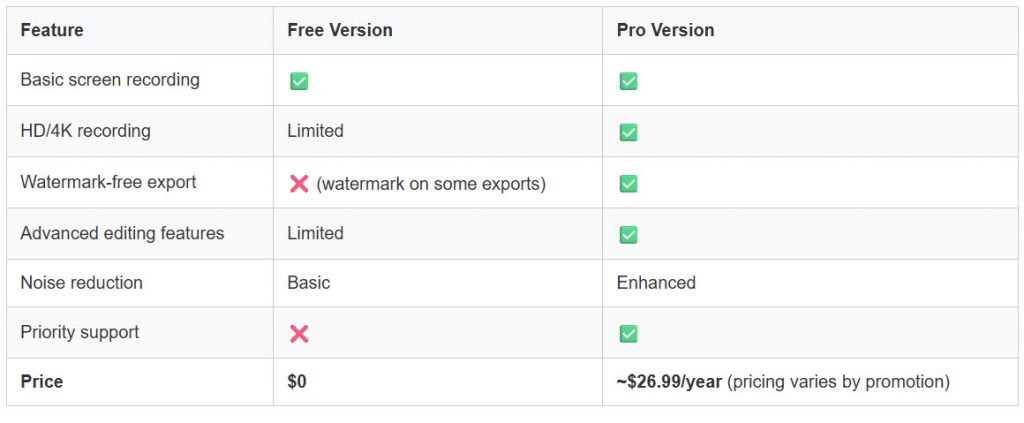 The Pro version removes the most frustrating limitations, but the annual subscription model means you’re paying indefinitely for access. For context, several competitors — including ActivePresenter — offer a genuinely full-featured free version with no watermarks and no time limits on recordings.
3 Real-World Use Cases: Where iTop Works (and Where It Doesn’t)
Scenario 1: Casual Gaming Clips ✅
The fit: A hobbyist gamer wants to capture highlight clips from gameplay sessions — 5 to 15 minutes at a time — and share them on social media. iTop’s game recording mode handles this reasonably well. The GPU acceleration keeps frame rates stable, and the quick trim editor is sufficient for cutting clips.
The limitation: If you want to add commentary, overlay graphics, or produce polished YouTube-style gaming content, you’ll need to move the footage into a separate editor anyway.
Scenario 2: Corporate Software Training ⚠️
The challenge: An L&D team needs to record 25-minute software walkthroughs with cursor highlights, zoom-in annotations on small UI elements, and chapter markers for easy navigation.
Where iTop falls short: This is where the lack of advanced editing tools becomes a real problem. iTop doesn’t offer cursor highlighting, zoom-n-pan effects, or chapter markers. You’d need to record in iTop, then import into a separate video editor for all the post-production work — doubling your workflow.
A better fit: In my experience building training content over the past decade, an all-in-one tool like ActivePresenter eliminates this friction entirely. You record, edit, annotate, add cursor effects, insert zoom-n-pan, and export — all within a single application. And the free version handles all of this without watermarks.
Scenario 3: University Lecture Capture (60+ Minutes) ⚠️
The challenge: A professor needs to record 75-minute lectures with a webcam overlay, then trim dead air and add chapter markers before distributing to students.
Where iTop struggles: Long recording sessions demand rock-solid stability — no frame drops, no audio drift, no silent quality degradation. In my testing, iTop handled shorter sessions (under 20 minutes) without issues, but longer recordings on mid-range hardware occasionally showed frame inconsistencies. More critically, the lack of chapter markers and limited trimming tools make post-production tedious.
What I’d recommend instead: ActivePresenter is specifically engineered for long-form recording. It handles 75-minute sessions without frame drops or audio drift — a problem I’ve personally seen with multiple “free” tools that silently degrade quality after 30 minutes. The multi-track timeline makes trimming and chapter marking straightforward.
iTop Screen Recorder vs. Alternatives: How Does It Stack Up?
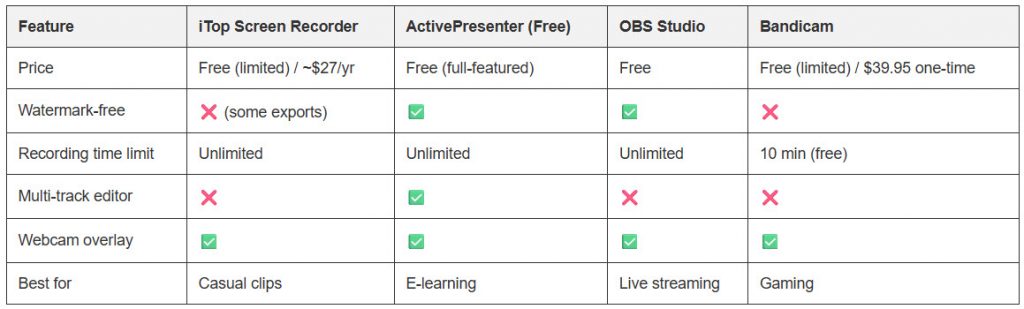 The Key Takeaway
iTop occupies a middle ground that can feel like a compromise. It’s more polished than OBS (which has no built-in editor and a steep learning curve) but significantly less capable than ActivePresenter for anyone producing structured educational or training content. If your workflow demands recording and editing and annotating in a single tool — without paying for a subscription — ActivePresenter is the stronger choice.
Pro Tips for Getting the Most Out of Any Screen Recorder
These tips come from over a decade of producing screen-based content. They apply regardless of which tool you use:
🎯 Tip 1: Lossless First, Compress Last
When recording long sessions (45+ minutes), capture in a lossless or high-quality format. Yes, the file will be huge — but you preserve maximum quality for editing. Convert to H.264 MP4 only at the final export stage. This avoids double compression and the “generation loss” that makes text look fuzzy in software tutorials.
🎯 Tip 2: Always Record at 1920×1080
Even if your monitor is 4K, set your recording resolution to 1080p. It’s the sweet spot: sharp enough for UI details, compatible with virtually every LMS and video platform, and the file sizes stay manageable. 4K recordings look impressive but create massive files that choke most LMS players.
🎯 Tip 3: Increase Your Cursor Size Before Recording
This is the simplest trick that most people overlook. Go into your system settings and bump up your cursor size before you hit record. In training videos, viewers need to track where you’re clicking — a tiny default cursor gets lost on a 1080p canvas. Combine this with cursor highlight effects (available in tools like ActivePresenter) for maximum clarity.
🎯 Tip 4: Use Bookmarks During Recording
If your tool supports it, insert bookmarks at key moments while recording (in ActivePresenter, it’s Ctrl+Shift+F9). These appear on your timeline afterward, making it dramatically faster to locate important sections in a long session instead of scrubbing blindly through 45 minutes of footage.
🎯 Tip 5: Record a 30-Second Test Clip First — Every Time
Before committing to a full recording session, do a quick 30-second test. Check audio levels, verify the correct screen region is captured, confirm your webcam isn’t washed out. This habit has saved me from re-recording entire sessions more times than I can count.
Evaluation Criteria: How We Assessed iTop Screen Recorder
To keep this review grounded and fair, here are the specific criteria I used to evaluate iTop Screen Recorder:
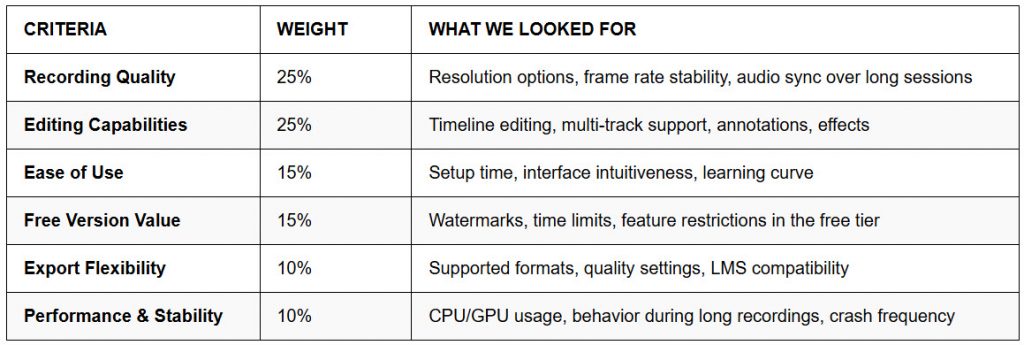 iTop’s Scores (Out of 10):
- Recording Quality: 7/10 — Solid for short sessions; some inconsistency in longer recordings
- Editing Capabilities: 4/10 — Basic trimming only; no multi-track, no advanced annotations
- Ease of Use: 8/10 — Very intuitive; minimal learning curve
- Free Version Value: 5/10 — Watermarks and upsell prompts diminish the experience
- Export Flexibility: 7/10 — Good format variety; quality gated behind Pro
- Performance & Stability: 6/10 — Lightweight but occasional frame drops in extended sessions
Overall: 6.1/10 — A decent casual tool, but not built for professional content production.
Final Verdict: Is iTop Screen Recorder Worth It in 2026?
For casual users who need quick screen grabs, short gameplay clips, or simple recordings under 15 minutes — iTop Screen Recorder is a functional, easy-to-use option. The interface is clean, setup is fast, and it doesn’t demand technical expertise.
For professionals, educators, and course creators — iTop falls short in the areas that matter most. The limited editing tools, watermark restrictions in the free tier, the absence of cursor effects and zoom-n-pan, and the lack of eLearning export capabilities (SCORM/xAPI) mean you’ll inevitably outgrow it — or need to supplement it with additional software.
The subscription pricing model also works against it. Paying ~$27/year for a tool that still lacks multi-track editing and advanced annotations is a tough sell when genuinely free alternatives offer significantly more.
Bottom line: iTop Screen Recorder is a starter tool. If your needs are simple, it works. If your needs are professional, you’ll need something more capable — and you don’t have to pay more to get it.
🚀 Looking for a More Complete Solution?
If this review has highlighted gaps between what you need and what iTop offers, ActivePresenter is worth a serious look. Here’s what you get — in the free version:
- ✅ Screen recording with no watermarks and no time limits
- ✅ Multi-track timeline editor — layer screen capture, microphone, system audio, and background music independently
- ✅ Advanced annotations — shapes, callouts, blur, spotlight, cursor highlights, zoom-n-pan
- ✅ Split video for microlearning modules
- ✅ Webcam overlay with full customization
- ✅ Long session stability — tested with 75+ minute recordings without frame drops or audio drift
- ✅ Windows & macOS support
For teams that need SCORM/xAPI export for LMS deployment, the Pro version unlocks interactive eLearning authoring — turning your recordings into assessable, trackable training content.